
Just Volleyball Multiplayer: Online, LAN, Split
How just volleyball multiplayer works across online play, LAN, split-screen, and co-op, including the server browser, lobby sizes, ping, and moderation.
Just volleyball supports online play, LAN, local split-screen, and co-op across every team size from 1v1 to 6v6. That is a wider net than most small sports games, and it means there is no single "right" way to play with other people. The right setup depends on whether your friends are in the same room, on the same network, or on the other side of the world.
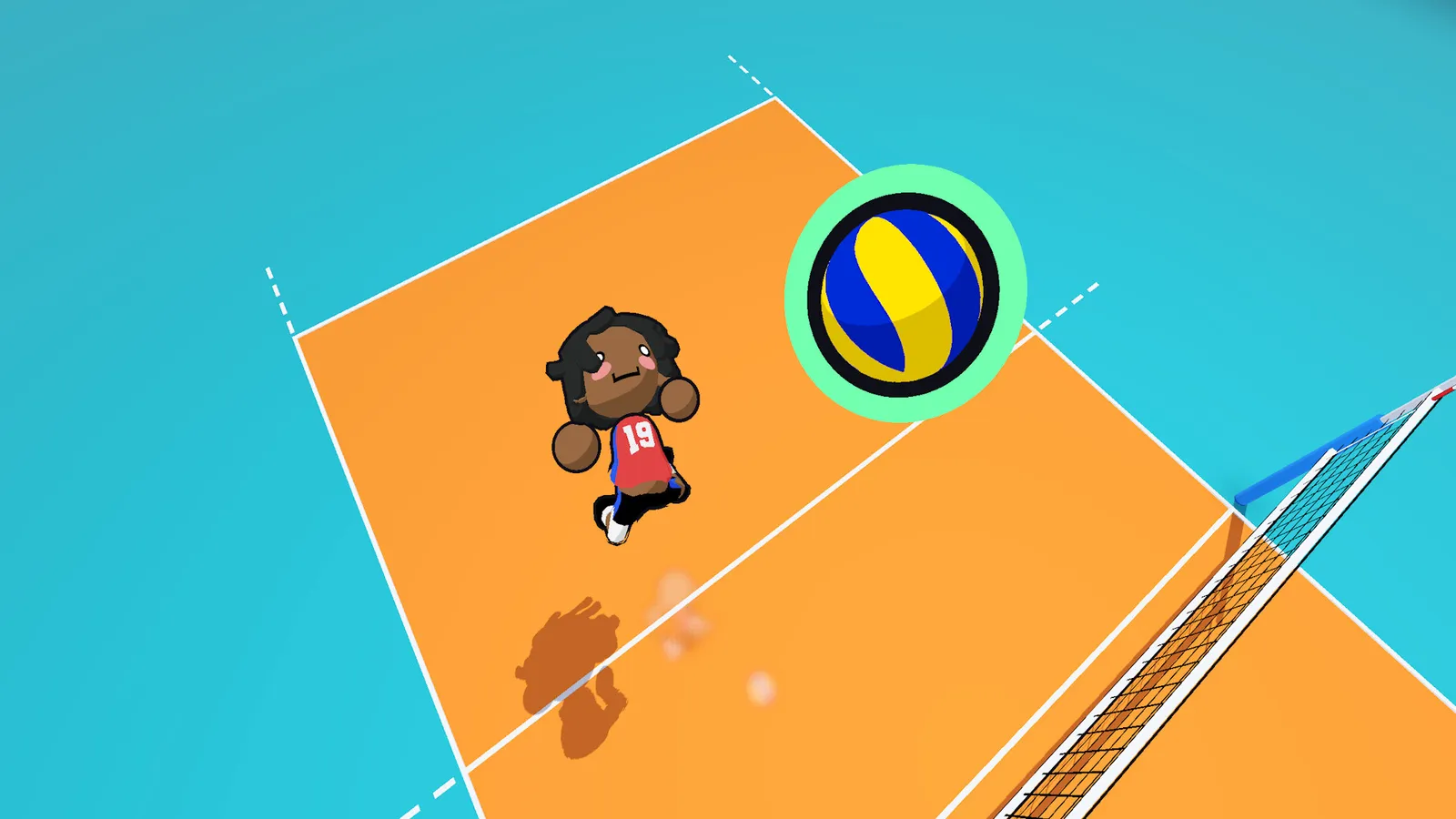
Online PvP, LAN PvP, shared/split-screen PvP, online co-op, LAN co-op, and shared/split-screen co-op are all listed on the Steam store page. The exact lobby menu and matchmaking rules will be visible at launch.
The four ways to play
| Setup | Who it is for | Latency | Requirements |
|---|---|---|---|
| Online server browser | Anyone with internet | Ping-dependent | Steam account, game |
| Online lobby with friends | A known group | Ping-dependent | Steam friends list |
| LAN | A room of PCs | Near zero | Same network, game on each PC |
| Split-screen | One screen, multiple players | None | Controllers or shared keyboard |
Each mode uses the same core rules. The difference is logistics, not gameplay. A 4v4 LAN match and a 4v4 online match use the same court and the same contacts.
Online play and the server browser
Community posts from the demo refer to a server browser rather than a hidden matchmaking queue. That is good news for a small game: a browser lets you see population, ping, mode, and lobby rules before you commit. It also lets a community organise a nightly lobby without waiting for a matchmaker to fill it.
When you open the browser, sort by ping first, then by mode. A 6v6 lobby with 180 ms is worse than a 2v2 lobby with 40 ms, even if 6v6 is the mode you ultimately want to play. The game modes guide explains why team size changes the experience so much.
If the browser is empty, host a lobby and leave it open. A visible lobby fills faster than an empty queue because players can see what they are joining.
Hosting a lobby
The exact host menu will be confirmed at launch, but the demo-era flow is straightforward:
- Choose a team size.
- Choose a court and any lobby modifiers.
- Decide whether bots fill empty slots.
- Set the lobby to public or friends-only.
- Share the lobby name or invite through Steam.
The developer's quoted feature list mentions custom lobby modifiers such as "sweat" and replay toggles. Those are host-side options, so the person who creates the lobby controls the rules. If you join a lobby with settings you do not like, leave; there is no shortage of lobbies in a healthy browser.
LAN play
LAN is the lowest-latency option and the best fit for a tournament or a couch-and-desk setup. Every player needs a copy of the game on the same local network. The host starts a LAN lobby, and the other players join through the LAN tab or the server browser's local section.
Two practical notes:
- Use wired connections if you can. Wi-Fi adds jitter even on a local network, and jitter is worse than a slightly higher average ping.
- Check the host's firewall. A LAN lobby that nobody can see is usually a firewall rule, not a game bug. Allow the game through Windows Defender Firewall on private networks.
The game does not require an internet connection for LAN, but Steam may still need to be online for account checks. Test the setup before a tournament, not five minutes before the first serve.
Split-screen and co-op
Shared/split-screen is listed for both PvP and co-op. The demo's local setup screen showed four player slots, which is the best public hint at the couch cap. That is enough for 2v2 on one screen, and it may support more in the full build; the store page does not state a number.
Split-screen changes the information problem. Each player sees a portion of the court, and the cursor is harder to track when the screen is divided. Zoom out if the game allows it per player. If the split-screen layout is horizontal, a wide monitor helps; if it is vertical, a tall one does.
Co-op uses the same team structure as PvP, but both sides can be human or bot-controlled. It is the best way to teach a friend: you take the setter role, they take the passer role, and the bots provide a consistent opponent.
Playing with friends who do not own the game
Steam Remote Play Together lets a friend join a local session as a streaming guest without owning the game. The host runs the match, the guest sends inputs over the internet, and the stream quality depends on both connections. It is not a substitute for a native online lobby, but it is a useful fallback for a single friend or a co-op session.
The crossplay guide covers Remote Play Together, family sharing, and the platform limits in more detail.
Ping, regions, and match quality
Just volleyball is a fast game with a small court. Latency matters more than it does in a turn-based game, but less than it does in a twitch shooter. A 60-80 ms lobby is comfortable; 120 ms is playable; above 150 ms, the ball starts to feel like it is arriving late.
Three ways to improve your connection:
- Pick the nearest region. The browser should show ping; use it.
- Use Ethernet. Wi-Fi is the most common cause of spikes in an otherwise good lobby.
- Close background downloads. A game update on another launcher can ruin a match even on fibre.
If you are the host, your connection sets the ceiling for everyone. A host on Wi-Fi is a bad host even if their own ping looks fine.
Moderation and reporting
The demo had limited moderation tools, and the developer has acknowledged it. In a match, you can mute a player, which hides their chat, avatar, and quick chat. The full game is planned to add a career/history system that supports reporting, and the developer has said chat automod is in progress.
For now, the practical advice is:
- Mute early. A toxic lobby is not worth the points.
- Report through the official Discord or the Steam forum if the in-game tool is missing.
- Do not engage in chat arguments. The mute button is faster and better for your mood.
The Discord guide explains where to post reports and what evidence to include.
Which multiplayer setup should you choose?
If you have a regular group: online lobby with friends. If you have a room full of PCs: LAN. If you have one screen and two to four people: split-screen. If you have one friend who does not own the game: Remote Play Together.
Do not overthink the first session. The important thing is to get into a rally. The friends guide is a step-by-step for the online and couch cases, and the controls guide will save you from the most common first-match frustration.
FAQ
Does just volleyball have online multiplayer?
Yes. Online PvP and online co-op are both listed on the store page.
Is there a server browser?
Community reports from the demo refer to one. The exact launch interface will be confirmed when the game ships.
Can I play LAN without internet?
LAN is supported, but Steam may still require an online check. Test your setup before an event.
How many players can play split-screen?
The demo showed four slots. The store page does not confirm a higher cap.
Can I play with a friend who does not own the game?
Yes, through Steam Remote Play Together, with the usual streaming caveats.
Further reading
Official source: just volleyball on Steam for the multiplayer categories and Steam Remote Play for the guest-streaming details.
More just volleyball Guides
Fast answers on the just volleyball release date, price, demo, crossplay, gamepad support, LAN, split-screen, system requirements, and launch status.
Every just volleyball team size explained, from the 1v1 duel to the full 6v6 court, with the best mode for beginners and the settings that change a lobby.
A plain-language just volleyball tutorial: the rally flow, the three-touch pattern, each position, and the fastest way to survive your first online match.
A step-by-step guide to playing just volleyball with friends online, on LAN, in split-screen, or via Steam Remote Play, plus fixes for common lobby problems.
The free public playtest opened on September 23, 2026 on a separate Steam app. Here is how it differed from the demo and whether it is still running.
The developer quoted a $7.99 base price for just volleyball with a 38% launch discount. Here is what is confirmed, what is not, and how regional pricing works.
The defensive half of just volleyball: how to receive a serve, set a hittable ball, position behind the block, and cover the court without wasting stamina.
Just volleyball still shows November 4 on Steam, but temkosoft says the launch will slip. Here is the current status and the realistic new window.